Dozzle
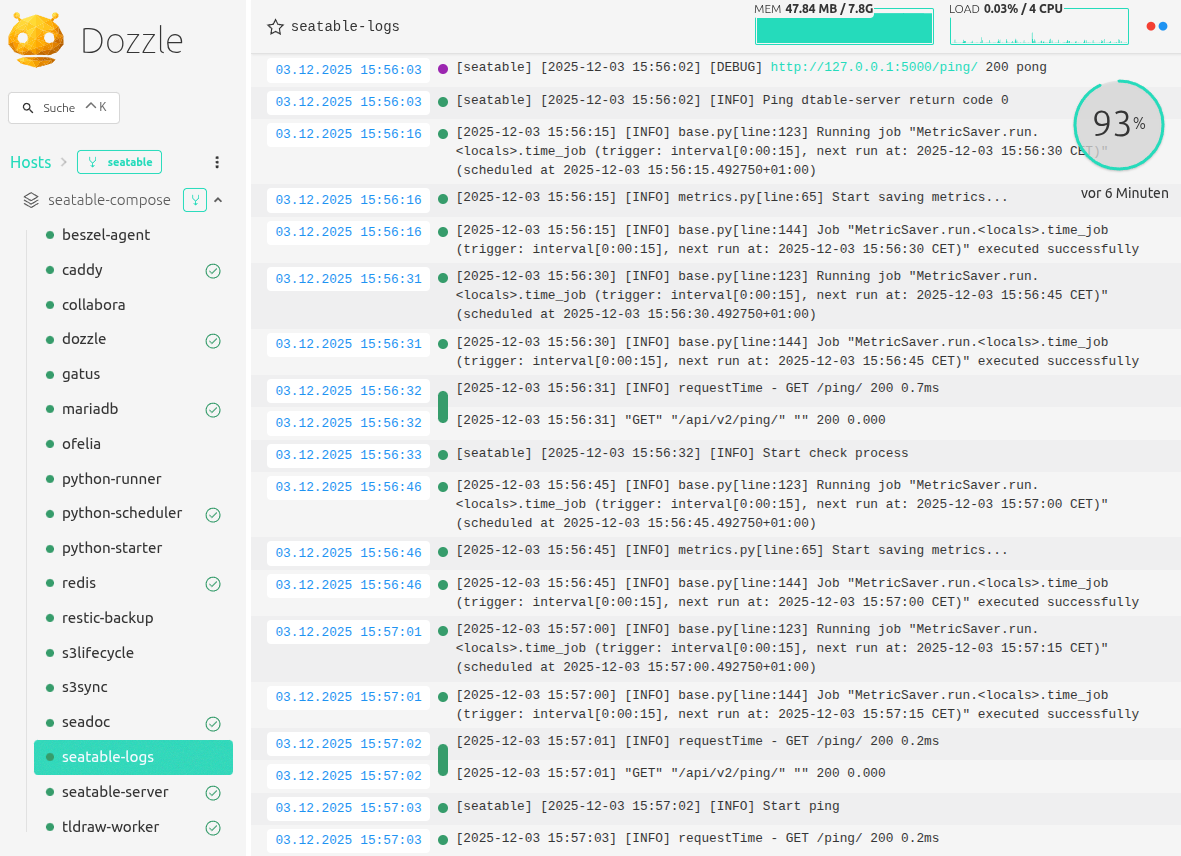
Dozzle is a lightweight, open-source web-based log viewer for Docker containers. It provides real-time monitoring of container logs without storing data persistently, making it ideal for quick debugging in containerized environments like SeaTable. Key features include fuzzy and regex search, SQL-based log queries, split-screen views for multiple containers, live CPU/memory stats, and multi-user authentication.
A dedicated sidecar container (seatable-logs based on sumologic/tailing-sidecar) tails SeaTable log files from /opt/seatable-server/seatable/logs and redirects them to stdout, enabling seamless aggregation by Dozzle via the Docker socket.
In a SeaTable context, it simplifies troubleshooting by aggregating logs from all services in your Docker Compose stack via the shared Docker socket.
Logs may contain sensitive data
Dozzle logs may expose sensitive information like passwords, API keys, base URLs or personal data. Restrict access to authorized users only and avoid public exposure.
Installation
This guide explains how to install Dozzle on your SeaTable server.
Change the .env file
As with other additional components, first add dozzle.yml to the COMPOSE_FILE variable in your .env file.
Copy and paste () the following command into your terminal:
sed -i "s/COMPOSE_FILE='\(.*\)'/COMPOSE_FILE='\1,dozzle.yml'/" /opt/seatable-compose/.env
Create a dozzle admin login
Dozzle requires you to create login credentials. Use the command line tool pwgen to create a secure password for your dozzle admin account.
The following command will generate the necessary file at /opt/dozzle/users.yaml:
export DOZZLE_PASSWORD=`pwgen -c 40 1`
docker run -it --rm amir20/dozzle generate --name DozzleAdmin --email dozzleadmin@example.com --password ${DOZZLE_PASSWORD} dozzleadmin > /opt/dozzle/users.yaml
echo 'Now you can login to dozzle with `dozzleadmin` + `'${DOZZLE_PASSWORD}'`'
Alternatively, you can change the command and adapt it to your needs.
Avoid special characters in passwords
When setting passwords manually (without pwgen), do not use special characters such as %, #, $, &, ', " or similar. These may cause issues and can prevent that you can login to Dozzle.
Instead, choose a long password using uppercase, lowercase, and digits to ensure both compatibility and security.
Start Dozzle
To start Dozzle for the first time, run:
cd /opt/seatable-compose && \
docker compose up -d
Next steps
After startup, Dozzle is accessible at https://<your-seatable-server-hostname>:6241.